
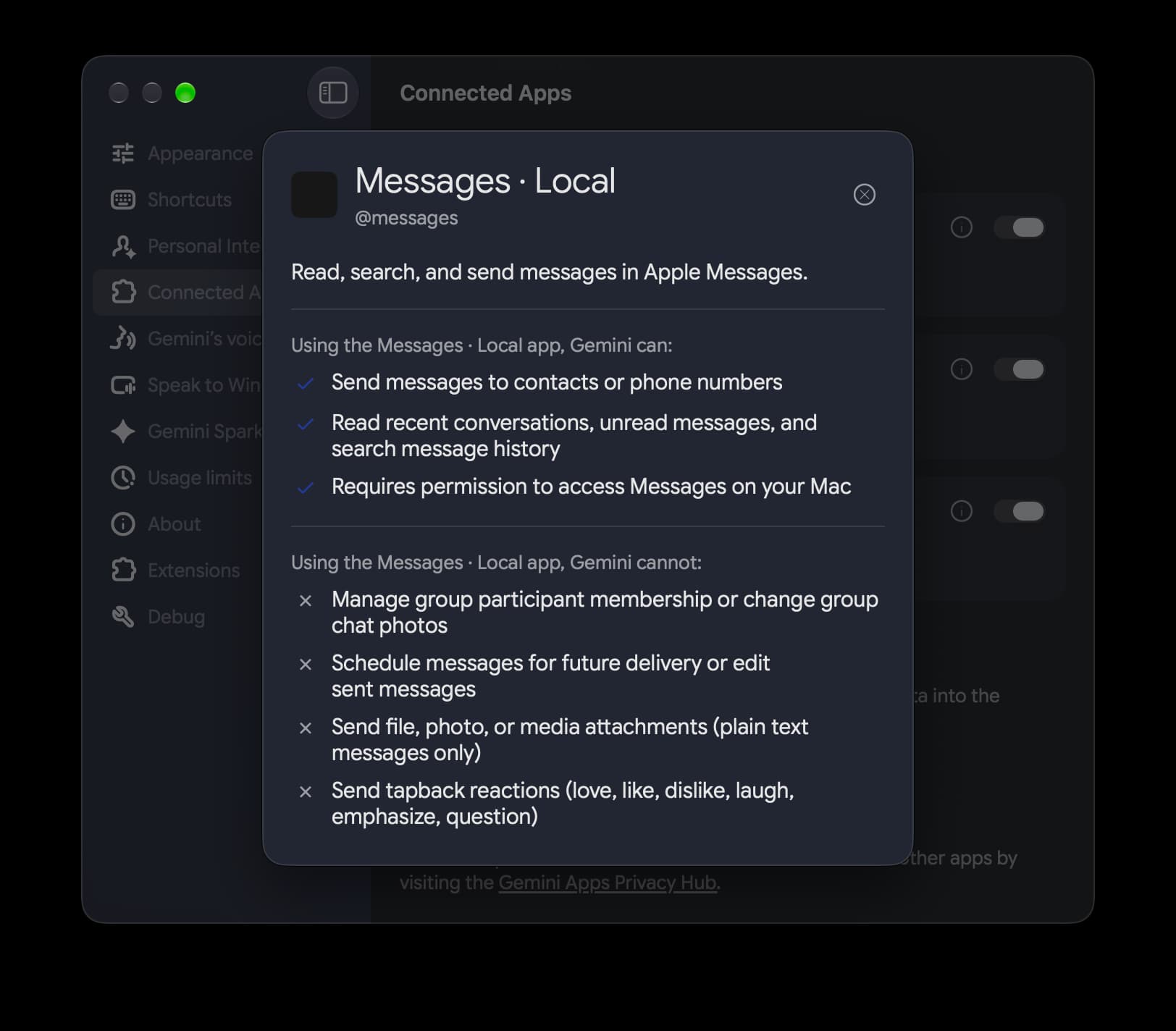
The newest addition to Gemini’s expanding suite of Connected Apps on macOS revolves around the "@messages" command, which is designed to allow the artificial intelligence to read, search, and send messages directly within Apple Messages. By establishing a direct bridge to the native messaging client on the Mac, the assistant gains the ability to draw upon a wealth of conversational context that was previously isolated within the user’s chat history. This capability allows the AI to look up specific information, review past discussions, and reference details shared across various contacts without requiring the user to manually dig through their message threads.
As detailed in the latest software updates, this functionality is intended to streamline information retrieval by pulling relevant data directly from ongoing or past conversations. Users will eventually be able to interact with the assistant using natural language prompts that reference their personal text history, significantly enhancing the utility of the AI for daily productivity and personal organization. Rather than treating the AI assistant as a standalone web tool, the integration embeds Gemini deeper into the native workflows of the macOS desktop environment.
The feature makes its initial appearance within version 1.116.5.889 of the Gemini app for macOS. Users navigating to the application settings will find the new option listed under the Connected Apps section, positioned prominently at the very bottom of the menu. However, despite the application update rolling out to users, the feature is not yet fully operational in practice. A server-side component appears to be missing from Google’s end, resulting in the "@messages" command not yet being recognized within the application’s prompt box. This phased rollout approach is common for major software updates, suggesting that Google is preparing the infrastructure on its servers before officially flipping the switch for general availability.
This messaging integration is only the latest in a series of productivity-focused updates that Google has brought to its macOS client in recent weeks. Previous updates introduced a dedicated File Providers extension designed to simplify how users feed media and documents into the artificial intelligence. When enabled through the application settings, this extension adds a convenient "Add to Gemini" option directly into the macOS Finder context menu. Whenever a user right-clicks on a photo or a document on their desktop or in a folder, they can instantly send that file straight into the Gemini prompt box, cutting down on friction when uploading reference materials or analyzing local documents.
In addition to the Finder integration, Google has continued to refine the user interface and feature set of the Gemini side panel on macOS. Recent patches have expanded the capabilities of the side panel by introducing dedicated sections for Images, Videos, and a Daily Brief feature. These additions are part of a broader effort to make the macOS application feel like a native, cohesive part of the operating system rather than a simple wrapper for a web browser interface. By integrating closely with Finder, system extensions, and now local messaging clients, Google is positioning Gemini as a comprehensive desktop assistant for Mac users who want seamless access to generative AI capabilities alongside their traditional desktop applications.

The expansion of the Gemini app to macOS and Windows underscores Google’s broader strategy to establish its artificial intelligence platform across all major computing environments. While the Windows app arrived just last week, the Mac version continues to receive platform-specific enhancements that take advantage of Apple’s operating system architecture. As Google completes the server-side rollout for the upcoming Apple Messages integration, users can expect the "@messages" command to become fully active, completing another step in the evolution of desktop AI assistants.